Selectively including or excluding content using conditional markers is something that most Flare authors are accustomed to. However, you may find yourself in a situation where you don't necessarily want to actually remove content, but you need to provide users a way to customize the display of that content to fit their user role or perhaps their version. Two great ways of doing this are the use of drop down text and/or the use of togglers.
Drop Down Text
Drop down text can be used when the specialized information lends itself to nice big contiguous chunks. If you can write the topic so that the top four paragraphs are the common information, then the next three paragraphs are specific to the basic version, and then the final six paragraphs are specific to the advanced version, then drop down text is perfect. Just set the three basic paragraphs as a “basic” drop down element and then set the last six paragraphs as an “advanced” drop down element and you are all set.
However, life rarely lets us get away with big contiguous blocks of information like that. Often the basic and/or advanced information will need to be mixed throughout the topic. This is a case where togglers can be used.
Togglers
If you are not familiar with toggler links, it is a bit like having a link anywhere on the page that can be used to show or hide any other information on the page that the author selects. One toggler can be used to show/hide fifteen paragraphs, eight bullet items, and three images spread all over the topic. By using multiple toggler links you can provide controls so that users can tailor the topic content to their own needs.
A small example:
I have created a topic with two togglers in a small navigation box. One is labeled Basic Version and the other is labeled Advanced Version. When the topic first opens the user only sees the common content and these two toggler links.
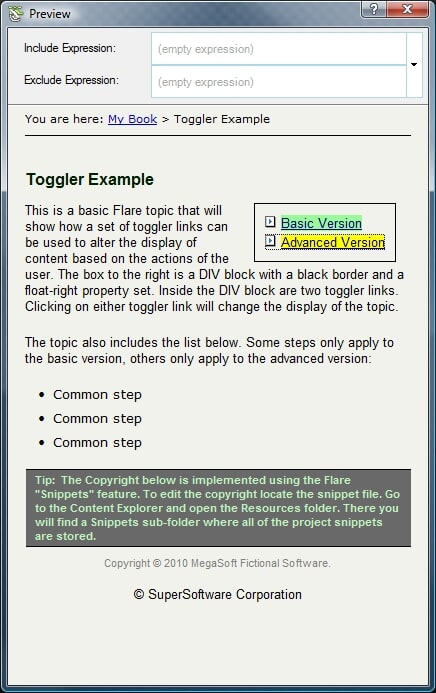
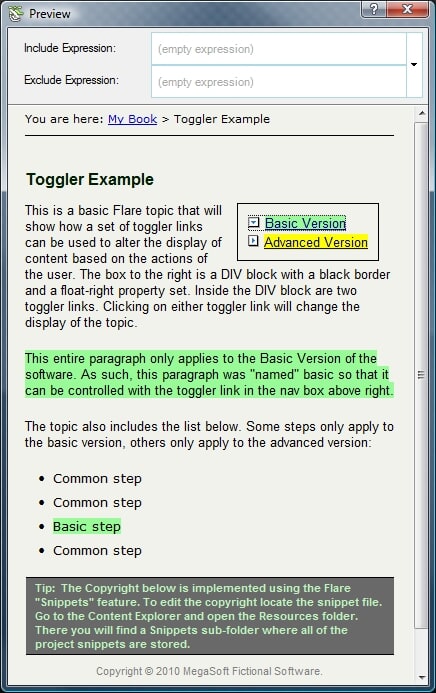
The user can now click on the toggler links to show more information tailored to their needs. If the user clicks on the Basic Version toggler then they will see all of the common information and the now exposed basic information (in green to make it easier to spot).
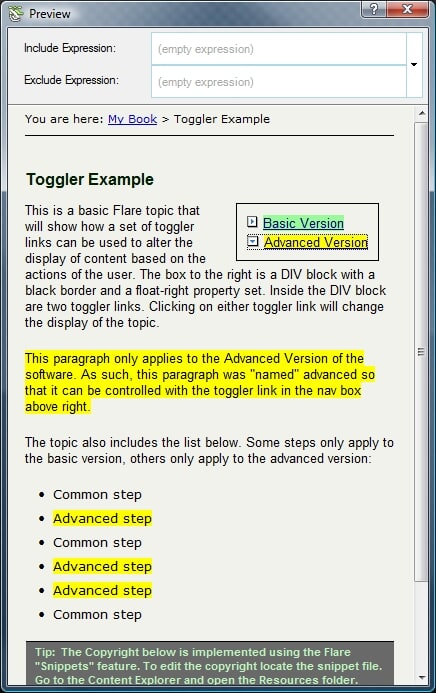
On the other hand, if the user had clicked on the Advanced Version toggler then they would see the common information and the advanced information (in yellow).
These are just two techniques for chunking content in a manner that allows the user/reader to tailor the visible content to their needs. If you have another technique feel free to share in the comments section.
-Mike