In MadCap Flare, page layouts and template pages are sometimes confused. On the surface, it seems like they're both accomplishing the same thing: applying content to multiple topics in your output. While there are some similarities between the two, page layouts and template pages are useful in distinctly different circumstances. Let's start with an analogy, shall we?
Page layouts are to print output as template pages are to online output.
Page layouts are generally recommended for print-based output, and template pages are the best method for automatically adding headers, footers, and breadcrumbs in multiple topics for online output.
Page Layouts
A page layout is an element that you can create in your project in order to determine page specifications (like size or margins) and to apply certain content (like headers, footers, page numbers) to many (or all) topics in print-based output. A key difference between page layouts and template pages is that page layouts can be used for any of the print-based outputs (Adobe FrameMaker, Adobe PDF, Microsoft Word, Microsoft XPS, XHTML), whereas template pages can be used only for Microsoft Word and FrameMaker when creating print-based output.
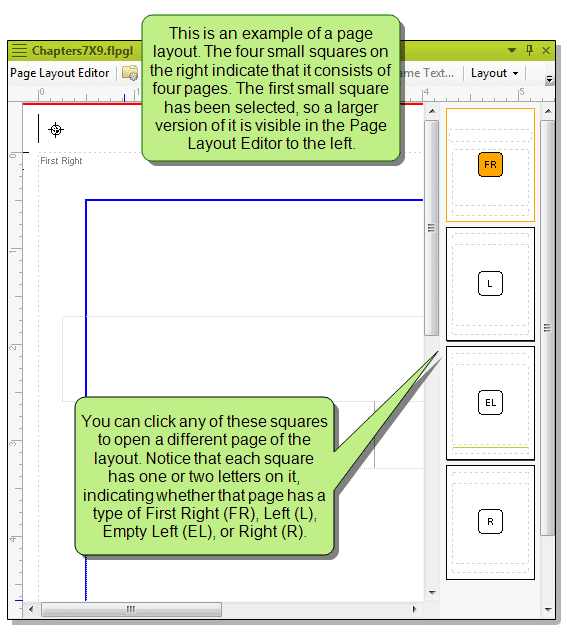
Each page layout can consist of several pages. For each page in a page layout, you can designate one of the following types, which determines the behavior of the page.
- Title
- First
- First Left
- First Right
- Left
- Right
- Normal
- Empty
- Empty Left
- Empty Right
When you add a new page layout to your project, you select a page layout template as the basis for the new layout. Flare lets you choose from various factory templates:
- ChapterA4
- ChapterLegal
- ChapterLetter
- ChapterResizable
- Default
- FrontMatterResizable
- GlossaryResizable
- IndexResizable
- NormalResizable
Many of these layouts already contain multiple page types. And many of the pages already contain content or variables in header or footer frames (like page numbers, Chapter Number variables and Heading variables).
You can also create your own page layout templates, which can be used in the future when you create new page layouts.
Template Pages
A template page is an element that you can create in your project in order to apply certain content to multiple topics. A template page is most useful in online outputs, but can also be used in Microsoft Word and FrameMaker print-based output. However, the benefits are somewhat different for online output than they are for print output. For example, you might use a template page in online output to apply features such as breadcrumbs, mini-TOCs, or footer text to multiple topics, or even all topics in a target. For print-based output, a template page allows you to determine page specifications (such as size or orientation) and to apply certain content (such as header text or page numbers) to many topics in a manual.
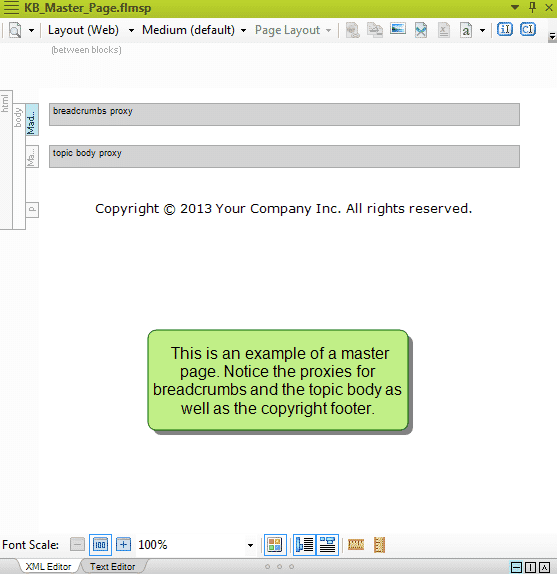
You can add a proxy to a template page to let Flare know you want to include a certain type of content in the template page. A proxy acts as a placeholder for the content that you have created elsewhere, and when you generate output, the content takes the place of that proxy. Proxies can be added to regular topics, as well as to template pages. The difference is that a proxy added to a topic will display that information in the output only once (wherever the topic occurs), but if a proxy is added to a template page, the content will show up everywhere that the template page has been applied.
To learn more about page layouts and template pages, visit MadCap Flare's online help.