> MadBlog > Article

Moving Your Excel Table Data to Flare

Published on: February 28, 2013

Blog-Posts.jpgmovingYourExcel

A great question was posted in the Users of MadCap Flare group on LinkedIn:

Any helpful hints for getting data out of Excel cells and pasting into a Flare table other than tedious copying and pasting each one?

Yeah, copying and pasting cell after cell sounds pretty excruciating. Here’s a much less time-consuming alternative.

Step #1: In Excel, highlight the cells that you want to copy to Flare.
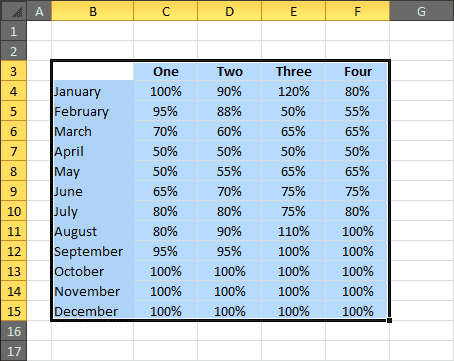
Excel table

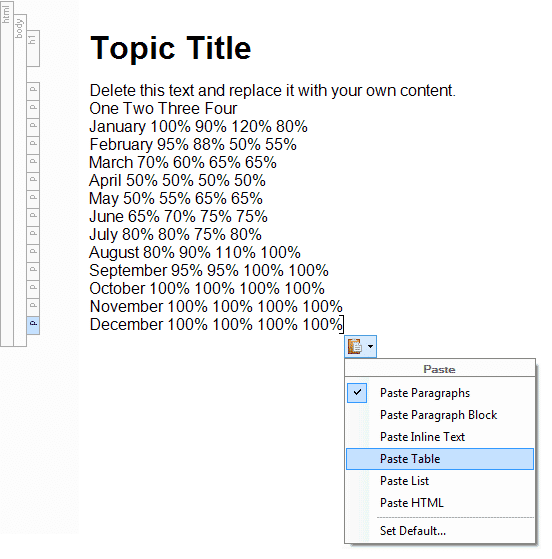
Step #2: In a topic in Flare, paste your content. Look to the bottom right of the pasted section. You should see a small icon . Click the down arrow next to it and select "Paste Table."

pasteIntoFlare

Step #3: Right-click the Table block bar and apply a table style if you want.
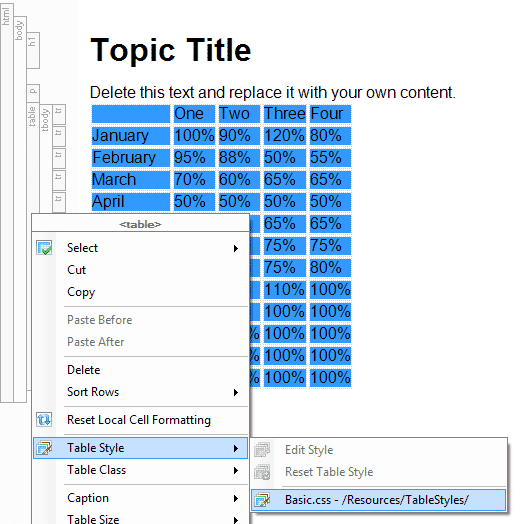
ApplytableStyle

This is what your table will look like in Flare:
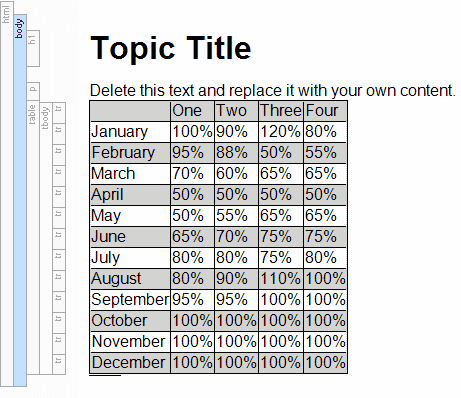
TableFormatted

Quick, easy, and with no infuriating copying-and-pasting!

Posted in: MadCap Flare, Tips & Tricks


Jennifer White

Jennifer White, a Product Evangelist at MadCap Software, has over 15 years of experience in writing, broadcasting, public speaking, marketing and social media management. Jennifer has also served as a social media manager, blogger, on-air host, writer and content provider for CBS Radio and Fox TV.

Try for Free

See it in your own workflow. Start a free trial and build your first project today.

lightbulb icon

Have a suggestion for a blog article? Submit it here