A Flare user sent us a great question about referencing content:
"We want to be able to say that a particular customer issue is addressed by 'KB article 10249' rather than by an article named 'How to do this in our product', as the title may change, but the number should remain the same."
After some deliberating here at MadCap Software, we concluded that by inserting a cross-reference (XRef) to a topic and using a format in the MadCap|xref style class, you could pull the linked topic's file name (with or without extension) or topic title.
For those of you astute single-sourcers out there who read the question and assumed you could just use a variable or snippet to do the job, keep in mind that these wouldn't be inclusive to a particular topic. You would be able to reference the topic identifier as a variable definition into content, but then the variable's definition would have the possibility of being overridden at the target level. You'd also have to maintain a list of all topics/ID's as a variable tag set, which could get clunky if you're dealing with a large volume of content.
The XRef method works under a couple of assumptions, though:
- You're on board with storing the topic's unique ID as either the filename of the topic, or in the "Topic Title" metadata field edited in the Topic Properties.
- You have to reference the topic ID using an XRef.
Cross-References in Flare
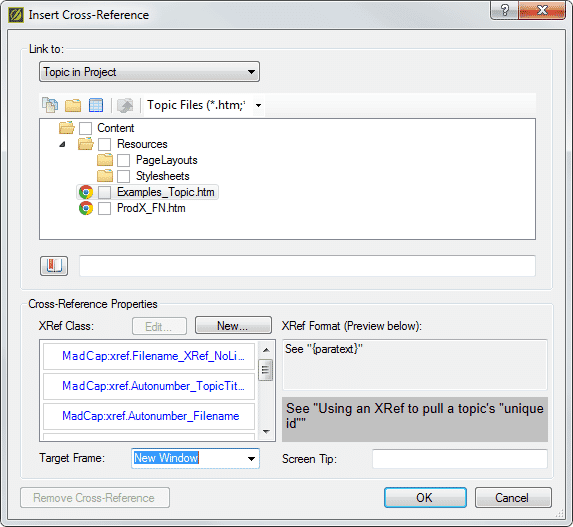
The Insert-> XRef Dialog, see the XRef Properties section where you can style class that pulls the topic {title}.
An XRef is a type of hyperlink, not a single-sourcing element. From the Flare 10 documentation here:
A cross-reference is a navigation link that lets you connect text in one topic to another topic (or a bookmark within a topic). This is somewhat similar to a text hyperlink. However, cross-references differ from hyperlinks in a few ways. They are based on format commands that help you keep the look of links consistent and are especially useful for print output.
More information on using and inserting XRefs in content can be found here.
The details on XRef formatting pertains to what we're doing here, as it explains how we're pulling data from the topic (topic title or filename) from the style:
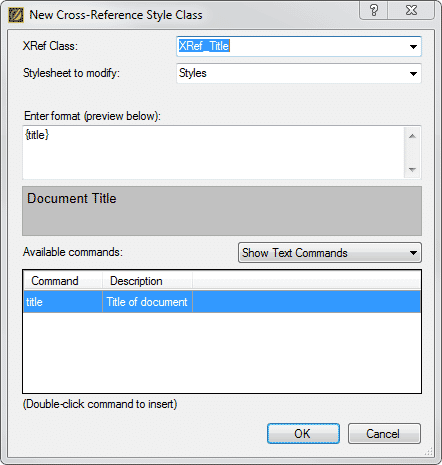
Select "Title" from the Text Commands in the XRef Style Class Editing Dialog
Cross-references let you create automated links that are based on commands you provide. This allows you to keep links consistent and change them in just one place by using the style. Commands are contained in brackets (e.g., {paratext}).
Your process will be as follows:
- As you're developing content and adding topics to your project, give each filename a unique ID (can be alpha or numbers), or, after a topic is added to the project, update the topic properties field to contain a topic's unique ID.
- Create an style that injects the cross-referenced topic's {filename} (with or without extension), or {title} field.
- Anywhere you want to reference a topic's {title} or {filename}, simply Insert->XRef.